
Download PDF Converter – Fast, Secure PDF to Word Tool
Overview
PDF Converter for Word is a desktop‑focused utility designed to turn static PDF files into fully editable Microsoft Word documents. The application targets professionals, students, and anyone who needs to repurpose content without the hassle of re‑typing or manual formatting. By preserving the original layout—including fonts, tables, hyperlinks, and images—PDF Converter delivers a near‑identical Word version that can be opened in any recent version of Microsoft Office, Google Docs (via .docx), or other compatible word processors.
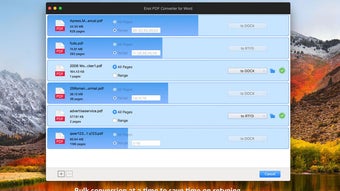
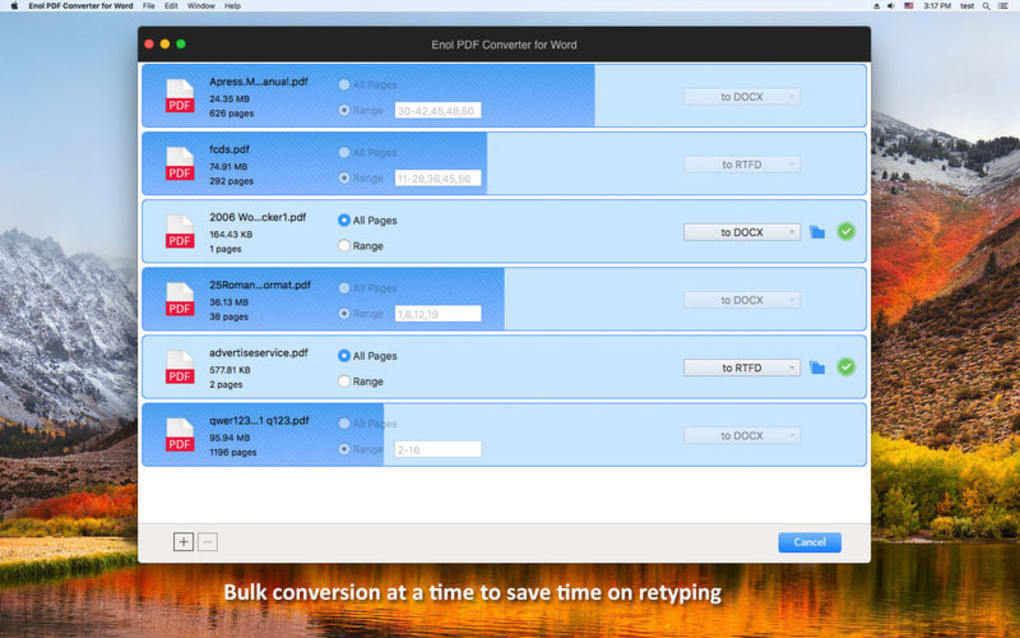
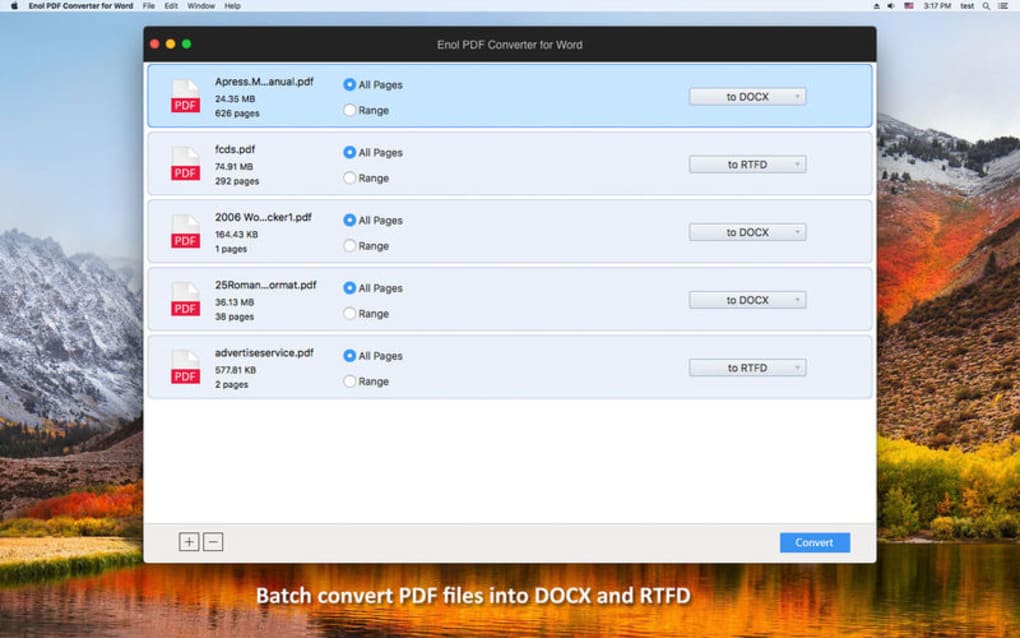
The software supports both single‑file conversion and batch processing, allowing users to convert multiple PDFs in one operation, which saves time for large projects such as contract archives or academic research libraries. The conversion engine runs locally, meaning your files never leave your computer, providing an extra layer of privacy and security for confidential documents. The interface is intentionally simple: drag‑and‑drop your PDF, select the output folder, and click “Convert.” Advanced settings are tucked away for power users who want to tweak image resolution, OCR language, or output format (DOCX, DOC, RTF).
Overall, PDF Converter positions itself as a reliable, fast, and secure bridge between the PDF world and the editable Word environment, eliminating the typical frustrations associated with PDF editing.
Key Features
- Accurate layout preservation – fonts, tables, images, and hyperlinks remain intact.
- Batch conversion – convert up to 100 PDFs simultaneously with a single click.
- Built‑in OCR – recognise text in scanned PDFs and turn it into editable Word content.
- Multiple output formats – export to DOCX, DOC, or RTF for maximum compatibility.
- Secure local processing – no cloud upload, ensuring confidential data stays on your device.
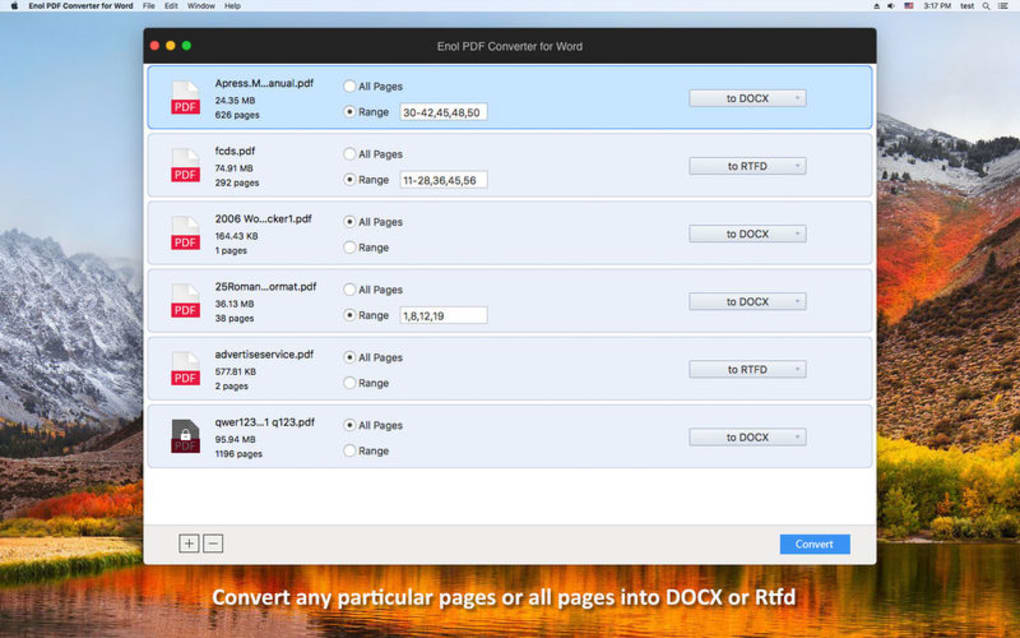
- Customizable conversion settings – adjust image DPI, language packs, and page range.
- Lightweight installer – under 30 MB, quick download and fast installation.
- Automatic updates – stay current with new PDF standards and bug fixes.
- Cross‑platform support – native installers for Windows 10/11 and macOS 10.15+.
- Drag‑and‑drop interface – intuitive workflow for users of any technical level.
Installation, Usage & Compatibility
Getting started with PDF Converter is straightforward. Begin by downloading the installer from the official website; the file is labeled PDFConverterSetup.exe for Windows or PDFConverter.pkg for macOS. Once the download completes, double‑click the installer and follow the on‑screen prompts: accept the license agreement, choose an installation folder (the default works for most users), and click “Install.” The process typically finishes within two minutes on a standard PC or Mac.
After installation, launch the application from the desktop shortcut or the Applications folder. The main window presents a clean layout: a large drop‑zone for PDFs, an output path selector, and a “Convert” button. To convert a single file, drag it into the zone, confirm the destination folder, and press “Convert.” For batch jobs, select multiple PDFs (Ctrl‑click or Shift‑click on Windows, Command‑click on macOS), then click “Batch Convert.” The progress bar provides real‑time feedback, and a notification appears once the conversion completes.
PDF Converter runs natively on Windows 10, Windows 11 (both 64‑bit) and macOS 10.15 (Catalina) through macOS 13 (Ventura). The software does not support Linux or mobile platforms directly, but converted Word files can be opened on Android or iOS devices using Microsoft Word or Google Docs. System requirements are modest: a 1 GHz processor, 2 GB RAM, and 50 MB of free disk space. Because the conversion happens locally, no internet connection is required after installation, which is ideal for secure environments.
Advanced users can access the Settings menu to enable OCR, select the language for text recognition, or limit conversion to specific page ranges. The program also offers an automatic update checker that runs at startup; if a newer version is available, a discreet prompt appears, allowing you to download the update without leaving the application.
Pros, Cons and Frequently Asked Questions
Pros
- High fidelity conversion that saves time on re‑formatting.
- Batch processing capability for large document sets.
- Local, offline conversion ensures privacy and data security.
- Built‑in OCR expands usefulness to scanned PDFs.
- Simple drag‑and‑drop UI reduces learning curve.
Cons
- No native Linux version, limiting use for some developers.
- Advanced OCR language packs require separate download.
- Free trial limits conversions to 5 files per session.
- No mobile app; conversions must be performed on a desktop.
- Occasional formatting quirks with highly complex PDFs (e.g., multi‑column magazines).
Frequently Asked Questions
Can PDF Converter handle scanned documents?
Yes. The built‑in OCR engine recognises text in scanned PDFs and converts it into editable Word content. You may need to download additional language packs for non‑English documents.
Is there a limit to the size of PDF files I can convert?
The free version limits each file to 25 MB, but the paid licence removes this restriction, allowing conversion of large reports and ebooks without issues.
Will the original PDF be altered during conversion?
No. PDF Converter works on a copy of the source file, preserving the original PDF exactly as it was.
Can I convert PDFs directly to Google Docs format?
PDF Converter outputs DOCX, DOC, or RTF files. These can be uploaded to Google Drive and opened in Google Docs, where they are automatically converted.
How often are updates released?
Updates are released roughly every 2–3 months, focusing on compatibility with new PDF standards, performance enhancements, and occasional UI refinements.
Conclusion & Call to Action
Overall, PDF Converter stands out as a dependable, secure, and user‑friendly solution for turning PDFs into editable Word files. Its batch processing and OCR capabilities make it a practical choice for both occasional users and heavy‑duty professionals. While the lack of a native Linux version and the trial‑mode limitations may deter a few power users, the paid licence offers a cost‑effective way to eliminate manual re‑typing and preserve document integrity. If you regularly work with PDFs—whether for legal contracts, academic papers, or business reports—downloading PDF Converter today will streamline your workflow and protect your data.
Ready to experience hassle‑free PDF editing? Click the download button below, install the software, and start converting in seconds.







